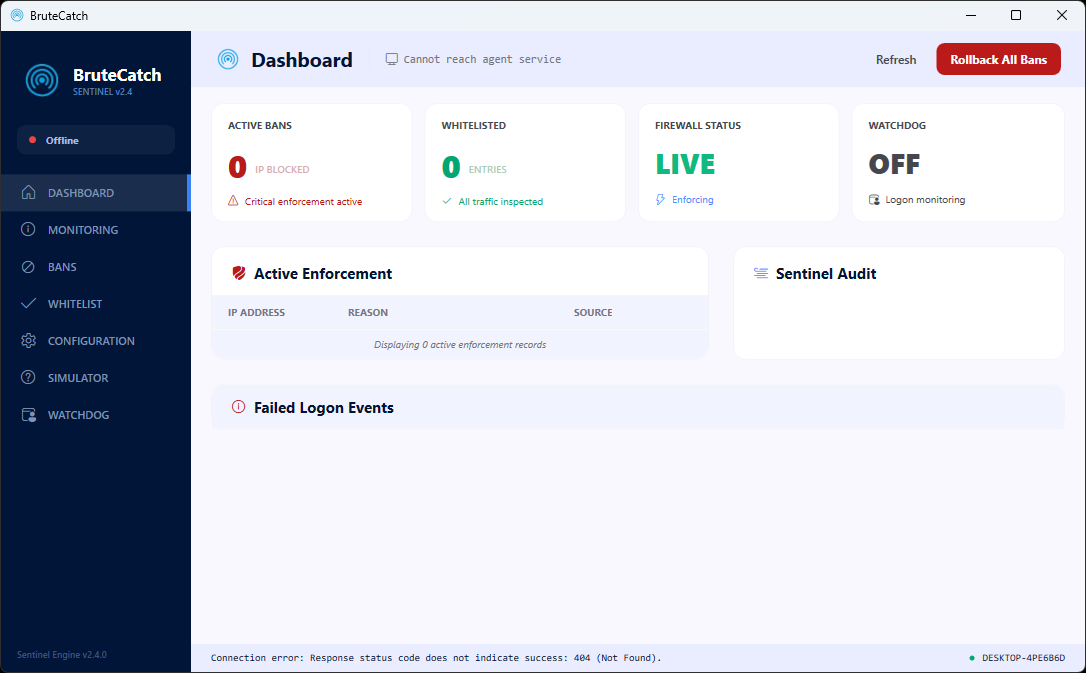
BruteCatch monitors failed logon attempts across RDP, FTP, SSH, MS-SQL, HTTP, and VPN - automatically banning attackers via Windows Firewall. Set it up in 2 minutes, forget about it forever.
The service runs 24/7 as a Windows Service. Auto-bans, auto-expires, auto-cleans up.
Simple Pricing
One-time payment. No subscriptions.
Buy once, own forever. Every license includes 12 months of free updates.
Solo
$59
one-time · 1 server
Perfect for a single VPS or dedicated server.
All 7 protocols
Logon Watchdog
Desktop management app
12 months free updates
Email support
Most Popular
Pro
$177
$129
one-time · up to 3 servers
Save $48 - 27% off vs. buying individually
For small teams managing multiple servers.
Everything in Solo
Up to 3 server activations
Priority email support
12 months free updates
Future features included
Enterprise
$295
$199
one-time · up to 5 servers
Save $96 - 33% off vs. buying individually
For MSPs, hosting companies, and larger teams.
Everything in Pro
Up to 5 server activations
Priority support + Slack
12 months free updates
Volume discounts on request
Purchases coming soon · Secure checkout will be powered by Paddle (VAT/GST handled automatically)
Documentation
Everything you need to know.
Installation
Option A: Installer (Recommended)
Download and run BruteCatch_Setup_1.0.0.exe. The installer requires admin privileges and will:
Install the Agent Service and/or Desktop App
Register and start the Windows Service automatically
Create Start Menu and optional desktop shortcuts
First Launch
After installation, open the BruteCatch Desktop App. It will automatically connect to the agent service running on your machine. Use the built-in Simulator to test detection before enabling enforcement.
System Requirements
Requirement
Details
OS
Windows Server 2016+ or Windows 10/11
Privileges
Administrator (for firewall management)
Runtime
None - fully self-contained, no dependencies
Disk
<50 MB + database growth
Configuration
Policy Settings
All settings are configured through the Desktop App - no config files to edit manually.
Setting
Default
Description
Failed login threshold
6
Failed attempts before auto-ban
Detection window
5 min
Sliding window for counting failures
Ban duration
30 min
How long the firewall rule stays
Recommendation-only
ON
Logs threats without banning
Important: The default policy ships with Recommendation-only mode ON. This lets you verify detection is working correctly before enabling enforcement. Disable it in Configuration to start auto-banning.
Protocol Monitoring
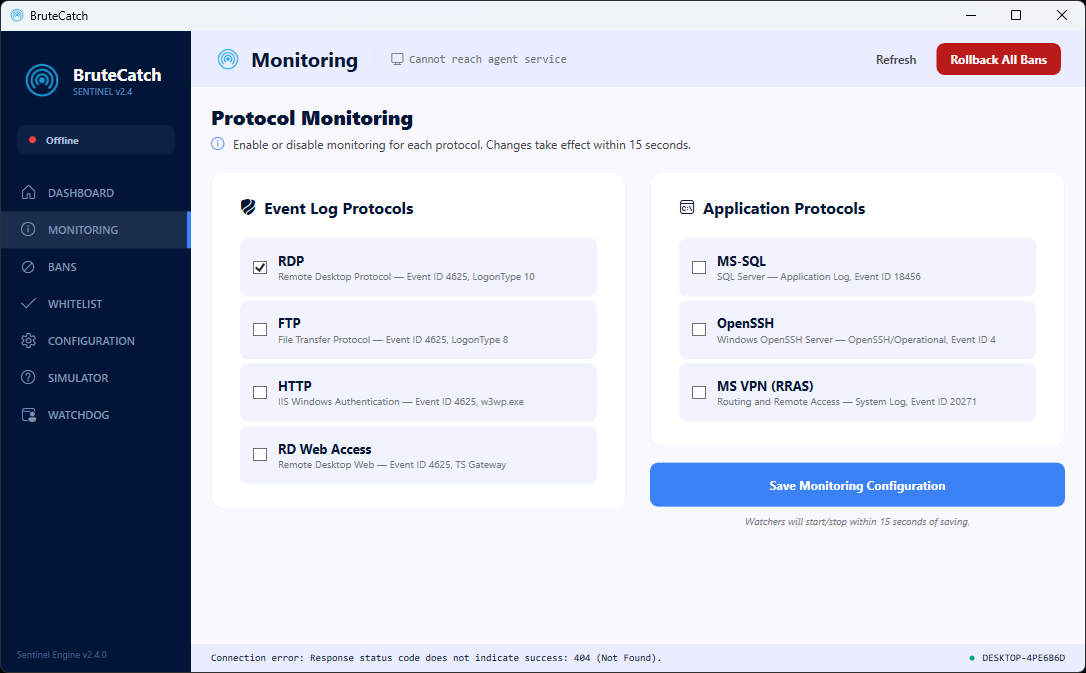
Each protocol can be independently enabled or disabled from the Monitoring page. Changes take effect within seconds. By default, only RDP monitoring is enabled - enable additional protocols as needed.
Dry-Run Mode
BruteCatch supports a full dry-run mode where all detection works normally, but no firewall rules are created. Perfect for initial deployment and testing on production servers.
Service Management
Running as a Windows Service
The installer automatically registers BruteCatch as a Windows Service that starts on boot. You can manage it through the standard Windows Services console (services.msc) or via the command line:
# Check service status
sc.exe query "BruteCatch Agent"

# Stop / Start
sc.exe stop "BruteCatch Agent"
sc.exe start "BruteCatch Agent"
Backup & Restore
All configuration, bans, whitelist entries, and audit history are stored in a local database. To back up, simply copy the data/ folder from the installation directory. Restore by copying it back.
Firewall Rules
BruteCatch uses Windows Firewall to block attacking IPs. Each ban creates a firewall rule that blocks ALL inbound traffic from that IP address. Rules are automatically cleaned up when bans expire.
Uninstalling
Use the standard Windows Add/Remove Programs to uninstall. The uninstaller will stop and remove the service. You'll be asked if you want to keep or delete your database (ban history, whitelist, etc.).
Logs
When running as a service, logs go to the Windows Event Log under Application source. For detailed logging, run the agent in console mode.
Logon Watchdog
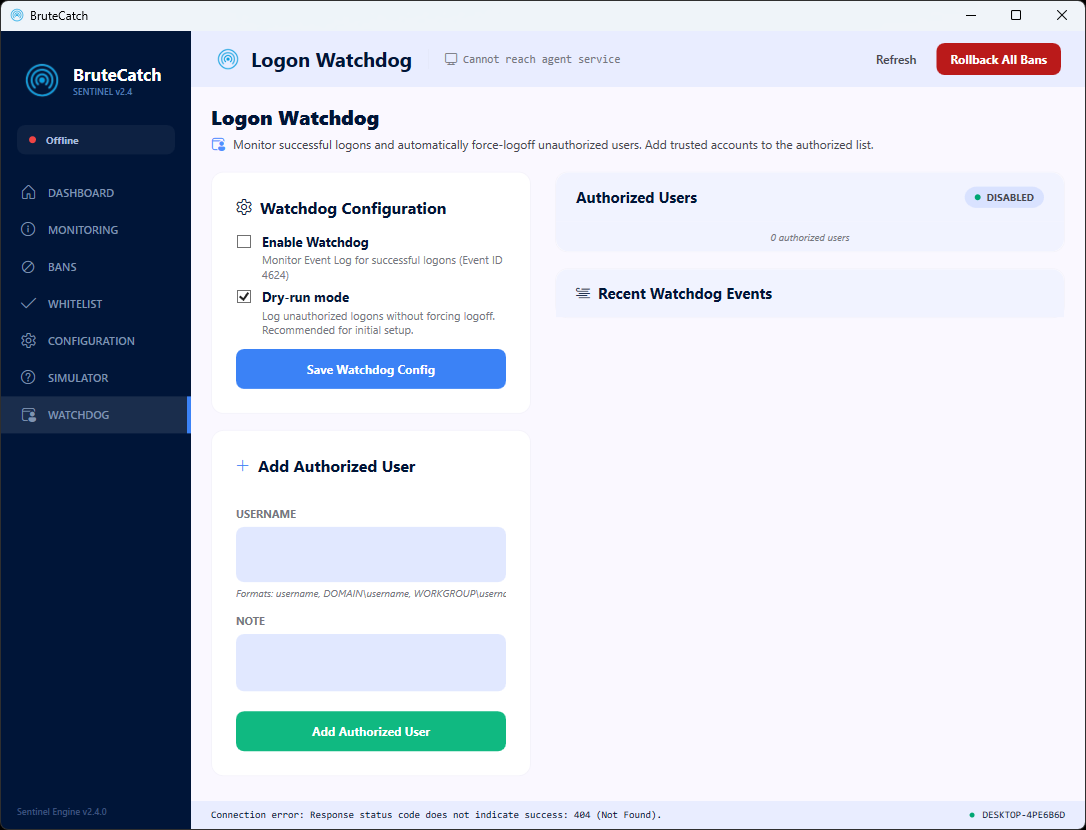
The Logon Watchdog monitors successful RDP logons (Event ID 4624, LogonType 10) and enforces an authorized-user policy.
How It Works
Add your trusted usernames to the Authorized Users list
Enable the Watchdog from the configuration panel
When someone logs in via RDP, BruteCatch checks if their username is authorized
Unauthorized users are force-logged off immediately (or logged in dry-run mode)
Modes
Mode
Behavior
Dry-run (default)
Logs unauthorized logons in the audit trail. No action taken. Recommended for initial setup.
Enforce
Automatically detects the unauthorized session and force-logs the user off immediately.
Username Formats
Usernames are automatically normalized - you can enter them in any format:
john
DOMAIN\john
john@domain.com
All formats are normalized automatically. System and service accounts are ignored.
FAQ
Common questions.
No. BruteCatch runs 100% locally on your server. It reads Windows Event Log data and creates local firewall rules. No data leaves your network, no cloud services are contacted, no telemetry is collected.
BruteCatch ships with Recommendation-only mode ON by default. This means it will log what it would ban without actually creating firewall rules. You can safely test with this mode, verify it's detecting the right things, and then enable enforcement. You can also whitelist your own IP/subnet to ensure you're never banned.
Yes. The Agent Service runs as a headless Windows Service. You can manage it from the Desktop App running on a different machine connected to the same server.
BruteCatch monitors 7 protocols out of the box vs. fewer in competing products. It also includes the Logon Watchdog (force-logoff unauthorized users), blocks ALL ports per IP (not just specific ones), and has a modern management UI with live event feed. Plus: one-time purchase with no annual renewal required.
Your license includes all new versions and features released within 12 months of purchase. After 12 months, your installed version continues to work forever - you just won't receive new updates unless you renew (renewal pricing TBD, will be heavily discounted).
The easiest way is to RDP into the server and use the Desktop App locally. For advanced setups, the agent can be configured to accept connections from other machines on your LAN.
BruteCatch ships with Recommendation-only mode enabled by default, so you can see exactly what it would do before enabling enforcement. Once you're confident it's working correctly, flip the switch to start protecting.
Protect your servers today.
One-time purchase. No subscriptions. No cloud dependency. Just solid, local protection.